

Accessing Your Protected PDF
Open the protected PDF on the main device where you want to access it. Otherwise, you will not be able to open it on subsequent devices. You can download this protected PDF on 4 devices for use by the same individual.
Check your Downloads folder to locate the protected PDF.
There are two changes to be aware of:
1. The protected PDF will only open on your PC or Mac using one of the following:
- Adobe Acrobat Reader DC
- Adobe Acrobat Pro
- PDF-XChange Editor
You can download a free copy of Adobe here: https://get.adobe.com/reader/
2. Before you open the protected PDF for the second time, you will need to change the settings of these PDF readers to view your PDF. (For many users, once you change your settings, you will not need to change them again to view protected PDFs.
On a PC
Open with Adobe Acrobat Reader DC or Adobe Acrobat Pro or PDF-XChange Editor:
Right-click the file> select "Open With"> choose Adobe Acrobat Reader DC or Adobe Acrobat Pro or PDF XChange Editor.
On a Mac
Click File > Get Info> choose Adobe Acrobat Reader DC or Adobe Acrobat Pro or PDF-XChange Editor as the application> click Open.
PDF Instructions to Change Settings - Screenshots below help you to see the steps
When in Adobe Acrobat Reader DC or Adobe Acrobat Pro or PDF-XChange Editor:
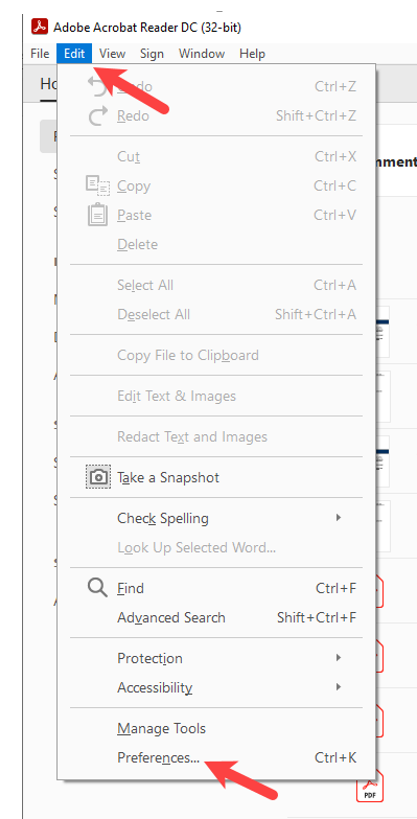
- Open the Menu (Top left corner)
- Choose Preferences
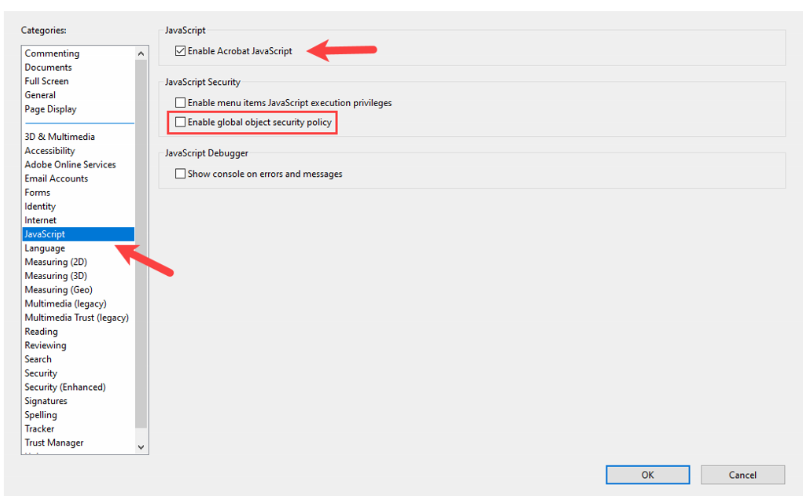
- Choose JavaScript
- Uncheck field: Enable global object security policy
- Go back to the Menu and choose Open. You will be prompted to choose the document to open, which will be the protected PDF in your Download folder
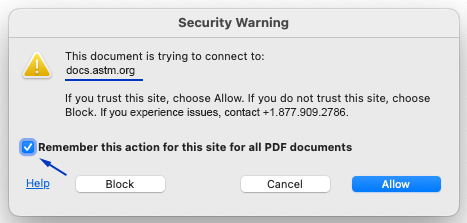
- You will see this pop-up message with an astm domain: astm.org
- First check the box to Remember this Action and then click Allow
- Now the protected PDF will open
Follow Along instructions With Screenshots
When opening a protected PDF in Adobe Acrobat Reader DC or Adobe Acrobat Pro or PDF-XChange Editor for the first or second time, you may encounter a couple of different pop-up messages, which require specific action:
Security Warning
This is a standard Adobe security message that will appear when you unlock a protected PDF. First check the box “Remember this action…”, then click Allow.
JavaScript Warning
For PC users of Adobe Acrobat Reader DC or Adobe Acrobat Pro
- Open Adobe Acrobat Reader DC or Adobe Acrobat Pro
- Go to Edit, then Preferences
- Go to the JavaScript under the Categories section
- Uncheck the field “Enable global object security policy” (you must disable this policy to unlock the protected PDF)
- Click OK once you remove the check
- Open the protected PDF and click Allow on all the communication messages.
For Mac users
- From the top menu bar, click on Adobe Acrobat Reader DC or Adobe Acrobat Pro, then Preferences
- Under Categories, click JavaScript
- Uncheck the field “Enable global object security policy” (you must disable this policy to unlock the protected PDF) and ensure the “Enable Acrobat JavaScript” field is checked
- Click OK
- Open the protected PDF and click Allow on all the communication messages.
For PDF-XChange Editor users (PC)
- From the top menu bar, click on File, then Preferences
- Under Categories, click JavaScript
- Uncheck the field “Enable global object security policy” (you must disable this policy to unlock the protected PDF)
- Click OK
- Open the protected PDF and click Allow on all the communication messages.
License Terms For Protected PDF
You are prohibited from:
- Print, save or print screen the PDF Content (note: to access the content offline, you can download the content to your browser cache which will be available offline for 30 days from date of last online sync);
- Reproduce, email, share, distribute, communicate, or grant access to the PDF Content to any other person;
- Upload, store, or use the PDF on a Network.
Important Note: Mac PDF Viewer, Chrome browser or another browser’s built-in viewer WILL NOT WORK. The PDF will NOT open on mobile or tablet devices (for access to the content on other devices please access the content in Web Reader format in your account).
Other Troubleshooting Tips
If content is not loading and you see a message about a proxy server, contact your IT service team to review the possible solutions below.
The problem is usually caused by a proxy / firewall that interrupts the communication between the content and authentication server.
Why proxy servers affect the process:
Proxy servers are designed to protect your organization from unwanted viruses, malware, and other phishing types of schemes. However, some types of communication are warranted, such as the content you're trying to access from a legitimate and trusted source.
Proxy server required configuration changes
The proxy must allow direct communication with the DNS address: www.astm.org
Firewall required configuration changes
Remove any blocks in Norton or other firewall software for docs.astm.org
Compatible Browsers Using The Web Viewer
You can view the content of your protected PDF when you are online using Web Viewer. You can also download the content to your browser cache to quickly return to access the content. The Web Viewer is compatible with the following browsers:
- Edge
- Firefox
- Chrome
- Safari